How to remove personal information from a Word document
Whether you’re sharing a contract, a résumé or a report — or pasting it into an AI tool — here’s how to take the personal data out safely.
1. Know what counts as “personal information”
Names, email addresses, phone numbers, home addresses, national ID numbers, bank card numbers, and any internal IDs. In a contract or CV these are often scattered through the body, the header, and the footer.
2. Don’t just hide it — remove it
The most common mistake is making text invisible instead of deleting it. Highlighting in black, changing the font to white, or drawing a shape over the words all leave the original text inside the file. Anyone who selects, copies, or inspects the document can get it back.
3. Check the parts you can’t see
A Word file keeps data in places that don’t show up when you scroll:
- Tracked changes — the original wording before edits.
- Comments — reviewer notes that may name people.
- Headers & footers — often hold company and author details.
- Document properties — author, company, last-modified-by.
- Footnotes & endnotes.
4. The fastest safe way
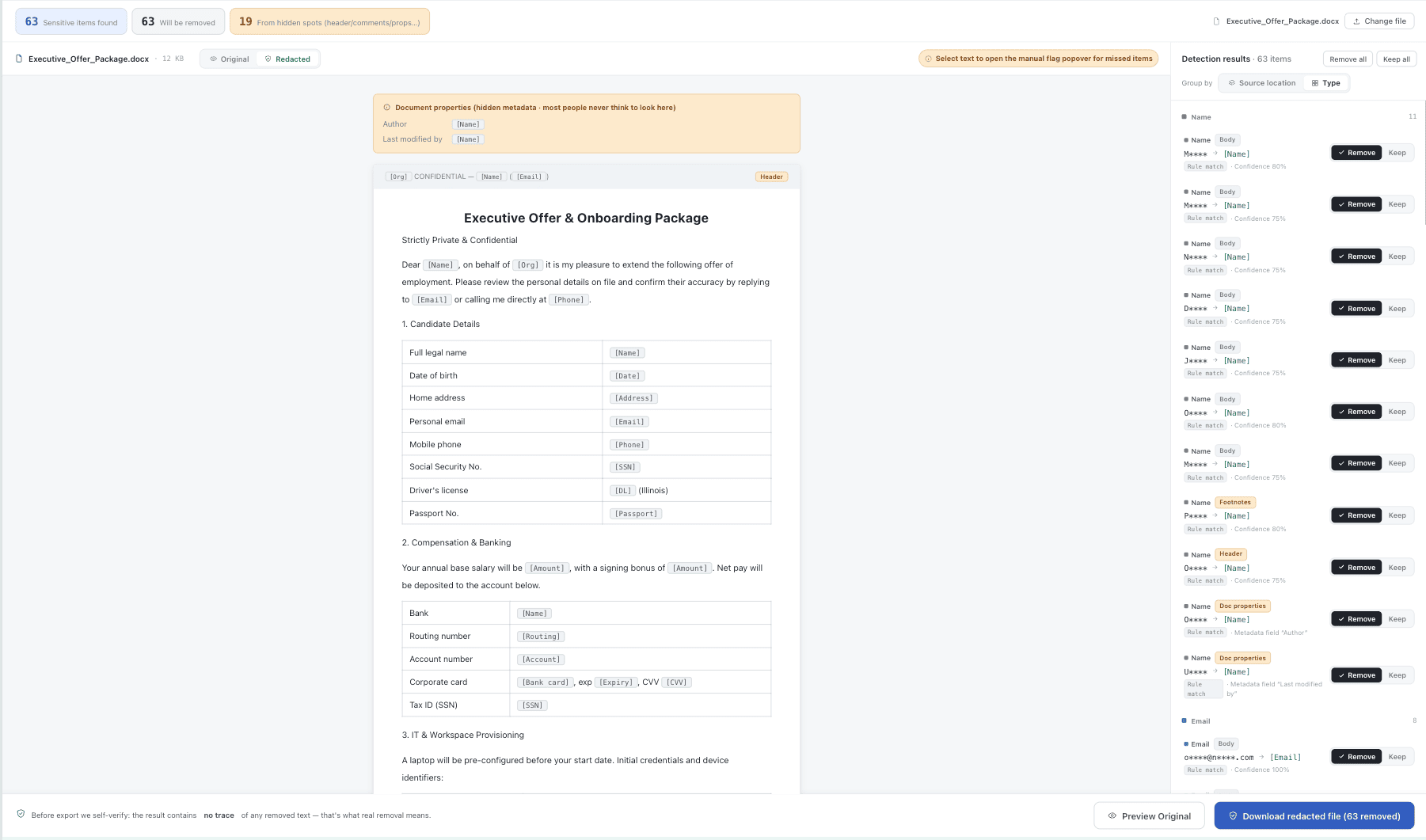
Doing all of the above by hand is slow and easy to get wrong. CleanDoc scans every one of those locations, deletes the matched text from the file’s data layer, and verifies nothing is left behind before you export. It runs in your browser — your file is never uploaded.
5. Review the list — and flag anything it missed
Automatic detection catches the patterned data (emails, phone numbers, ID and card numbers) reliably, but no rule set is perfect for free-form text like a name or a project codename. Before you export, scan the list — and if you spot something the tool didn’t catch, select it in the preview and flag it by hand. Manual marks are removed from the file exactly like the automatic ones, so nothing you’ve flagged survives the export.
FAQ
Is deleting text in Word enough? For visible text, yes — but remember comments and document properties keep their own copies.
Does a black highlight redact text? No. It only hides it visually; the characters stay in the file. See redacting without leaving traces.